
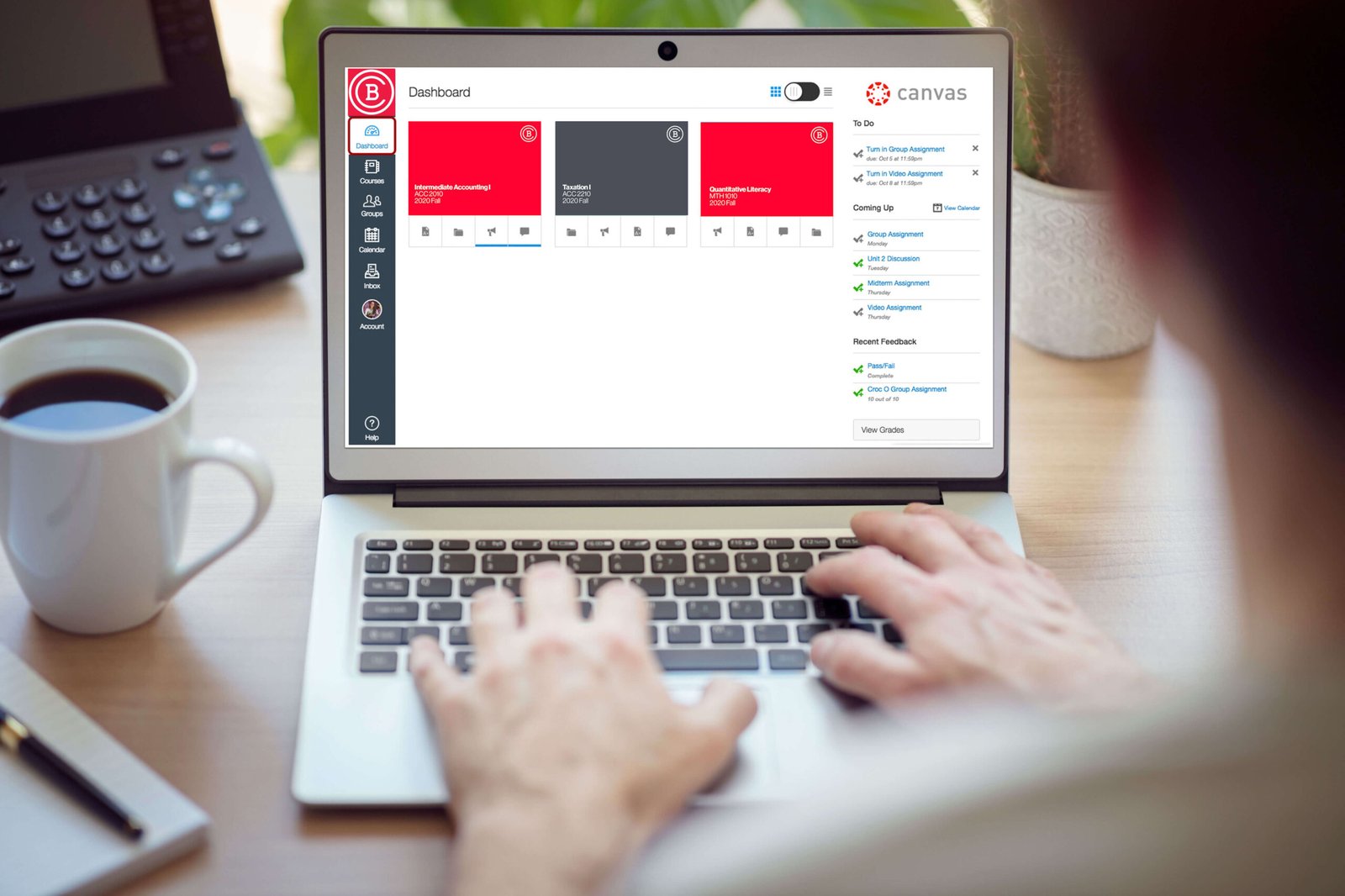
The question “can Canvas see if you copy and paste?” comes up among students who use Canvas for coursework, quizzes and online exams. The important distinction is between the Canvas learning management system’s own activity records and additional tools that a school may connect to it. Canvas can record certain page views, submissions and quiz interactions, but its ordinary activity reporting is not a universal clipboard recorder that reliably tells an instructor every time a student presses Copy or Paste.
What an instructor can see depends on the Canvas feature, the institution’s permissions, the activity involved and any separate assessment or monitoring software in use. This guide explains the difference, why activity logs should be interpreted cautiously and how students can follow academic-integrity rules without relying on myths about what a platform can detect.
Does Canvas Automatically Record Every Copy-and-Paste Action?
Canvas does not provide a general, reliable record that simply labels every clipboard copy or paste action across a student’s computer. An instructor should not assume that the platform can identify the exact source of text or prove that a student copied a particular passage just because the student opened a page or moved away from a quiz screen. Ordinary course analytics are designed to show aspects of platform activity, not to monitor every action in the operating system.
This does not mean every Canvas course is technically identical. Institutions can enable integrations, browser-based testing tools, lockdown systems or proctoring services with their own policies and capabilities. Those products may collect additional information under their configuration and privacy rules. Students should consult their course instructions and institution’s technology guidance rather than assuming that one answer covers every exam setup.
What Canvas Activity Logs Can Show
Canvas can store events related to course activity. Depending on permissions and feature availability, instructors or administrators may be able to see page views, participation events, quiz submissions or other interactions. A page view may indicate that an account opened a particular course resource. A participation event can represent an action such as submitting an assignment, replying to a discussion or contributing to a page.
These records can help a teacher understand whether resources are being accessed and how students engage with a course over time. They are not the same as a full recording of a student’s screen, keyboard or clipboard. The presence of an event does not necessarily explain the intention behind it, and a missing event does not prove that a student did not study or complete work offline.
What Instructors May See in Quiz Logs
Canvas quiz logs can show certain events during a quiz attempt, such as a student viewing a question, answering a question, leaving the quiz-taking page or returning to it. The exact fields and interface depend on the quiz product and institutional configuration. These records can give an instructor context about the sequence of activity during an assessment.
A page losing focus does not by itself prove that a student searched for answers, copied text or opened a prohibited website. A student might switch windows to deal with a notification, experience a network interruption or use an accessibility tool. A log should be treated as one piece of context and compared with the assessment rules and other evidence, not treated as an automatic misconduct verdict.
Page Views Are Not a Perfect Record of Learning
Instructure’s own guidance explains that page-view data is a best-effort record and may be incomplete or duplicated. Device settings and network conditions can affect what is recorded. Instructure specifically cautions against using page views to assess academic integrity. The data can be useful for broad patterns and course-level support, but it is not a perfect measure of what a student read, understood or did away from the Canvas page.
For example, a student may download a file and read it offline, use printed material or work from a saved copy. Another student may leave a page open without actively reading it. A page view cannot reliably distinguish those situations. Teachers should combine platform data with assignment quality, class discussion, drafts and direct communication rather than treating a click count as proof of learning or misconduct.
Can Canvas Tell Where Pasted Text Came From?
Canvas’s ordinary page-view and quiz activity reports do not establish the origin of a pasted passage. A text entry in an assignment may contain copied material, but identifying that material usually requires a different method, such as reviewing citations, comparing source material or using an institution-approved originality service. A clipboard event and a text-similarity result are not the same thing.
Originality or similarity tools compare submitted work with sources in their available databases and show matching text. A match can occur because a student quoted a source correctly, used a common phrase, submitted a template or copied material improperly. A similarity score is not automatically a finding of plagiarism. The instructor must review the matched passages, citation practice, assignment instructions and relevant institutional policy.
Third-Party Proctoring and Browser Tools
Some schools use assessment tools that operate alongside Canvas. A proctoring service may require a browser extension, a secure browser, identity verification, screen or webcam permissions, or other controls. The exact data collected varies by product, settings, institution and the student’s consent or policy notice. Do not assume that Canvas itself is responsible for every monitoring feature that appears during an exam.
Before an assessment, read the official instructions for the specific tool your institution has selected. Check the required browser, supported operating system, privacy notice, allowed materials and technical support contact. If the software requests permissions that you do not understand, ask the institution before the exam begins. Avoid installing unofficial extensions or software that claims to bypass monitoring; such tools can compromise privacy, device security and academic standing.
What Students Should Know About Copying Course Material
Copying and pasting is not automatically dishonest. Students routinely copy their own notes, move a quotation into a draft, paste a formula into a permitted worksheet or use text from an instructor-provided template. Whether an action is allowed depends on the assignment directions, course policy, copyright rules and the way the copied material is presented.
When using another writer’s words, follow the required citation style and clearly mark direct quotations. When paraphrasing, express the idea in your own words and cite the original source when required. If the assignment prohibits outside assistance, shared documents or external resources, follow those restrictions even if a technical system cannot detect every action. Academic integrity is about honest work, not only about what software can see.
What Teachers Should Do With Activity Data
Instructors should explain what course analytics can and cannot establish. A page-view log may help identify a student who has not accessed a required resource, prompting a supportive check-in. It should not be treated as a complete record of attention. Quiz logs can help diagnose a technical issue or understand an unusual sequence of events, but they should not be used as the sole basis for a serious academic-integrity decision.
Where a concern arises, follow the institution’s published process. Review the assignment, the student’s work, citations, drafts and relevant technical evidence. Give the student an opportunity to explain. Keep the discussion factual and avoid making accusations based only on an ambiguous log entry. Institutions should ensure that data is used consistently with applicable privacy policies and accessibility obligations.
How to Avoid Accidental Academic-Integrity Problems
Read each assignment’s rules before starting. If you are permitted to use outside sources, keep a list of them while researching rather than trying to reconstruct sources at the end. Use quotation marks when you copy exact wording into your notes. Mark copied research text clearly so that it does not accidentally end up in a final submission as if it were original writing.
Keep drafts and notes when the course requires independent work. A version history can help explain how an assignment developed, although it is not a substitute for following the rules. If you use an AI writing assistant, translation tool, grammar checker or tutoring service, check whether the course allows it and whether disclosure is required. When instructions are unclear, ask the teacher before submitting.
How to Handle a Technical Issue During a Quiz
If Canvas freezes, the browser closes or your internet connection drops, follow the instructor’s emergency instructions. Record the approximate time, the error message and the steps you took. Take a screenshot only if your course policy permits it and the image does not expose sensitive information. Contact the teacher or support team promptly rather than repeatedly refreshing the assessment without knowing whether a response has been saved.
Do not try to conceal a technical issue by changing device times, deleting records or using unofficial tools. A clear explanation and timely report are more helpful than actions that make the event harder to understand. If the quiz log shows that the page lost focus, provide the relevant circumstances honestly and let the instructor assess the information under the course’s normal process.
Privacy and Student Data
Students should understand what information their institution collects through Canvas and any connected assessment services. Review the institution’s privacy policy, technology acceptable-use policy and the tool-specific notice. Data retention periods, administrator permissions, analytics features and third-party service settings can vary. If you have a concern about a data record or monitoring requirement, contact the institution’s privacy office, IT department or instructor.
Instructors and administrators should use the minimum data needed for a legitimate educational purpose and follow institutional rules for access and retention. Analytics can help improve teaching and identify support needs, but collecting more data does not automatically make decisions more accurate. Transparent expectations are especially important for high-stakes exams and students who use assistive technology.
Reliable Sources for Canvas Activity Information
Instructure’s support documentation describes how account-level page views can be accessed and warns that the data is a best-effort record, not a reliable basis for high-stakes academic-integrity judgments. Its guides to course analytics also describe page views as an approximation of activity rather than an absolute measure. Yale’s teaching centre similarly notes that Canvas was designed for teaching and learning rather than as an academic-dishonesty detector.
For the most current explanation, start with the official Instructure guide to user page views and the institution’s Canvas policy. Your school may have additional assessment tools or local settings that are not covered by a general Canvas article.
Frequently Asked Questions
Can Canvas detect when I press Ctrl+C or Ctrl+V?
Ordinary Canvas activity reports are not a universal clipboard log that reliably lists every copy and paste. A separate proctoring or browser tool may have different capabilities and policies.
Can a teacher see if I leave a quiz page?
Some quiz logs can record leaving or returning to the quiz page. Such an event does not by itself explain why it happened or prove misconduct.
Can Canvas tell whether text was copied from a website?
Canvas activity logs do not establish the source of a pasted passage. Similarity tools may identify matching text, but an instructor must review the context and citations.
Does Canvas show how long I read a page?
Some page-view or course-analytics reports include interaction-time estimates, but these are approximations and should not be treated as proof that a student read or understood the material.
Can a school monitor a screen during an exam?
A school may use a separate proctoring or secure-browser tool with additional controls. Check the exam instructions and the privacy notice for the exact service used.
What should I do if Canvas records an incorrect activity event?
Contact your instructor or support team promptly, explain what happened and provide relevant details. Follow the institution’s process for reviewing activity records.
Conclusion
Canvas can record course activity such as page views, participation and certain quiz events, but those records are not the same as a dependable log of every copy-and-paste action. Third-party proctoring or assessment tools may collect additional information, depending on the institution’s setup. Students should follow course rules and cite sources honestly; teachers should interpret logs cautiously and avoid treating ambiguous activity data as proof. For a specific exam, the course instructions and your institution’s official technology policy are the most reliable guides. Read Instructure’s page-view documentation for the limits it places on interpreting activity records.
